Archive for the 'Main' Category
Tuesday, August 13th, 2013
 Having an application that displays your important tasks while you concentrate on other things is a big step towards getting things done on time. If you want such application that displays your calendar and task items on the desktop; then you should check out DeskTask. Having an application that displays your important tasks while you concentrate on other things is a big step towards getting things done on time. If you want such application that displays your calendar and task items on the desktop; then you should check out DeskTask.
What’s DeskTask?
DeskTask is a program that connects to Microsoft Outlook and displays your calendar and task items on the desktop. It displays Calendar items in the current week (next 14 days) and the items you may have in your Outlook task list. The window is pinned to your desktop and is transparent, having no impact if you have a wallpaper.
The publisher has introduced a couple of changes including; fixing of lock position that was not working in previous edition, and some other minor bug fixes. This version also retains some of the good old features you have always enjoyed when using the application such as; your tasks will always be visible, saving precious time to launch or switch to Outlook; minimize every window, and see what are the items due for today or tomorrow; displays the whole week so you can be prepared to organize your work; Besides the calendar items, and the Outlook to-do list (Folder Tasks) is also displayed if you work with Outlook, DeskTask is for you.
DeskTask is a very useful program that has no visible downsides; especially now that the publisher has introduced a few bug fixes and changes.
Want to check it out? Visit CarthagoSoft.net.
Posted in Main | No Comments »
Tuesday, August 13th, 2013
 RJ TextEd is a web development tool and a Unicode text editor with features like syntax highlighting, advanced column mode and code folding. Below is a small list of features available. RJ TextEd is a web development tool and a Unicode text editor with features like syntax highlighting, advanced column mode and code folding. Below is a small list of features available.
What is this product all about?
RJ TextEd is a full featured text and source editor with Unicode support. It supports the following powerful web development editors: (PHP, ASP, JavaScript, HTML and CSS). The functionality of this freeware goes way beyond mere text files and includes support for CSS/HTML editing with integrated CSS/HTML preview, spell checking, auto completion, HTML validation, templates and more. The program also has a dual pane file commander, as well as a (S)FTP client to upload your files. Below is a small list of features available.
Some of the main features of this application includes: Auto completion, Code folding, Column mode, Multi edit and multi select, Advanced sorting, handles both ASCII and binary files, CSS and HTML wizards, CSS and HTML preview using internal IE, Firefox 4 and Chrome browsers, FTP and SFTP client with synchronization, File explorer, text clips, code explorer, project manager, Convert between code pages, Unicode formats and text formats spell checking, e-mail support, advanced search with regular expressions among several others.
RJ, the author of this freeware has added the following new features in this version: Version 8.64 includes Quick block select (Shift+Alt+Selection) which allows simple editing after selection and fixes in few code explorer issues. Small update to the AutoIt syntax highlighter, Minor update to the CSS syntax, Auto completion is not triggered if a text is selected when you hit e.g. (.)-dot, Auto brace and bracket completion is not triggered if a text is selected, and CSS auto completion.
All in all a very good text editor to have.
To find out more about this program, please do go to RJ-Texted.
Posted in Main | No Comments »
Monday, August 12th, 2013
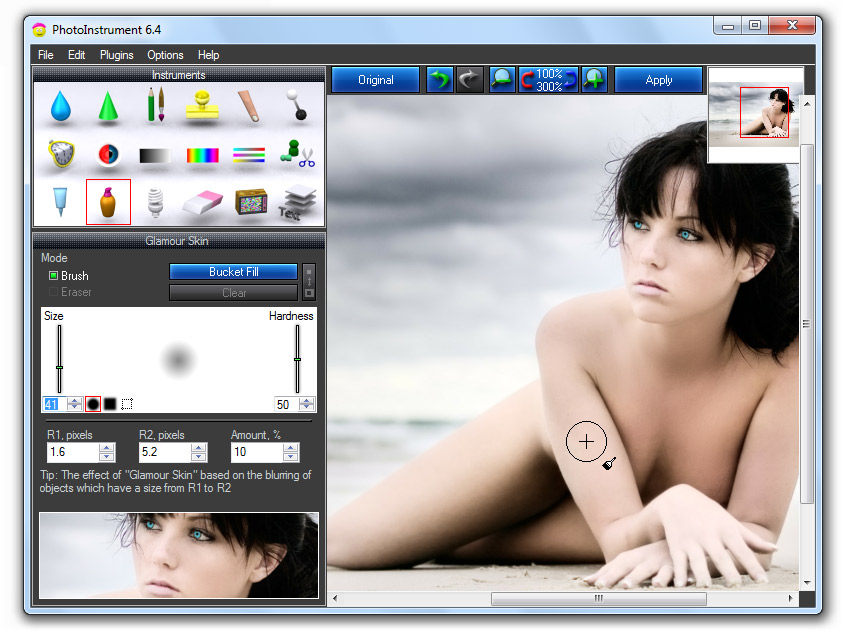 Need an easy to use tool for editing and processing your favorite digital photos? Check out PhotoInstrument. Need an easy to use tool for editing and processing your favorite digital photos? Check out PhotoInstrument.
What is PhotoInstrument?
This is a powerful photo editor that quickly and easily allows you to adjust and process digital photos. PhotoInstrument is a small tool that helps you edit image files. It is a handy utility that can be used by anybody – novice or experts. Its user interface is easy to use even if you don’t have any experience in digital photography. The software comes with a video tutorial that will teach you how to use PhotoInstrument in just a few minutes.
PhotoInstrument can help you to create glamor skin, remove unwanted objects from a picture, create multiple clones of yourself, clean skin impurities, and many more. It’s all about being creative.
It’s various tools can help you fix the common issues associated with digital photos such as blur, sharpen, brush (select color, size and hardness), clone (or healing brush), smudge, dodge and burn, liquify (move, push left, grow, shrink, remove), red eye removal, brightness and contrast, colorize, levels, rotate, scale and crop, skin cleaner, glamor skin, glow, object removal, noise removal, and layers.
Some of the main features of this program are: Save as Animated Gif, Support Photoshop-compatible plugins, Add text to an image. Other features include: Overlay two and more images, Drag and drop to open photos in this photo editor, Copy/Paste image from Clipboard and several others.
This current version contains the following g new features: Liquify, Clone, Smudge, Skin Cleaner, Glamor Skin, Dodge / Burn, Brush, Blur, Sharpen, Colorize, Scale, Rotate, and several others more.
To know more about this program, please visit PhotoInstrument.com
Posted in Main | No Comments »
Sunday, August 11th, 2013
 These days on the internet, we continue to see the launch of new applications everyday to enable us enjoy the way we do things. In the browser category, there are lots of applications to look out for. In case you haven’t heard of Sleipnir before; it is a freeware that enables you do a lot of things with ease. These days on the internet, we continue to see the launch of new applications everyday to enable us enjoy the way we do things. In the browser category, there are lots of applications to look out for. In case you haven’t heard of Sleipnir before; it is a freeware that enables you do a lot of things with ease.
What’s Sleipnir?
Sleipnir is designed to be grounded in concept; in other words, the publishers just want to provide Best Browser to accommodate individualized needs. You can produce your best browser via changing design, and skin to change visual appearance, and adding plug-ins, and other useful scripts to make Sleipnir more useful. This high level performance of customize find favor with advanced user.
Sleipnir’s latest changes include the following: create tab group per search result” added to Customize|Tab group|Tab group, actions when opening bookmarks in search result tab groups modified, “Search result tab group” added to Customize|Tab group, “Speed up Initial start up” added to Customize|Start/home|Start up, and Blink updated (Chrome/28.0.1500.95).
Sleipnir is also available for Windows phone, Android, iPhone and iPad among others. Most of the versions are available with features that enable you to take total control of your internet experience.
Downside
Sleipnir takes too long to launch.
Want to check it out? Visit Fenrir-INC.
Posted in Main | No Comments »
Wednesday, August 7th, 2013
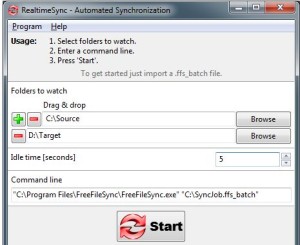 Do you want a simple program that allows you to synchronize or compare two folders. Then you should check out FreeFileSync. It can be mainly handled by users with some experience in this area. Do you want a simple program that allows you to synchronize or compare two folders. Then you should check out FreeFileSync. It can be mainly handled by users with some experience in this area.
What’s FreeFileSync?
FreeFileSync is a folder comparison and synchronization tool providing highly optimized performance and usability without needless user interface complexity. The application can also be installed as a portable product. In this case, you can store FreeFileSync on a USB flash drive or any other removable device, save it to any computer and directly run its executable file.
That means you will always be able to carry FreeFileSync with you when you are on the more. What’s more important is that the Windows Registry is not updated with new entries, and no leftover files can be found on the hard drive after program removal.
FreeFileSync has an easy to use interface that enable you to add as many folders to the list as you want, by using either the file browser or ‘drag and drop’ method. FreeFileSync also allows you to pick one of two modes for the comparison procedure, by file time and size, or by file content.
Any downside?
FreeFileSync is ad-supported, and users must be a bit cautious when installing it.
Want to check it out? Visit FreeFileSync at SsourceForge.
Posted in Main | No Comments »
Wednesday, August 7th, 2013
.jpg) Sometimes knowing a few things ahead of any major task can be difference between moving on and staying put. With Process Explorer, you have an application that shows you information about which handles and DLLs processes have opened or loaded. The unique capabilities of Process Explorer make it useful for tracking down DLL-version problems or handle leaks, and provide insight into the way Windows and applications work. Sometimes knowing a few things ahead of any major task can be difference between moving on and staying put. With Process Explorer, you have an application that shows you information about which handles and DLLs processes have opened or loaded. The unique capabilities of Process Explorer make it useful for tracking down DLL-version problems or handle leaks, and provide insight into the way Windows and applications work.
What’s Process Explorer?
Process Explorer shows you information about which handles and DLLs processes have opened or loaded. The display consists of two sub-windows. The top always shows a list of the currently active processes, including the names of their owning accounts, whereas the information displayed in the bottom window depends on the mode that it is in. The unique capabilities make it useful for tracking down DLL-version problems or handle leaks, and provide insight into the way Windows and applications work.
The Process Explorer display consists of two sub-windows. The top window always shows a list of the currently active processes, including the names of their owning accounts, whereas the information displayed in the bottom window depends on the mode that Process Explorer is in.
Want to check it out? Visit Technet.Microsoft.com.
Posted in Main | No Comments »
Wednesday, August 7th, 2013
 The benefits of an all-in-one application that enables you do a lot of jobs online cannot be overemphasized. A program like Spiceworks gives you so much benefits including the following; inventory, monitoring, help desk and community Q&A. The benefits of an all-in-one application that enables you do a lot of jobs online cannot be overemphasized. A program like Spiceworks gives you so much benefits including the following; inventory, monitoring, help desk and community Q&A.
What’s Spiceworks?
Spiceworks is free network management software designed for networks with up to 250 devices. It combines inventory, monitoring, help desk and community Q&A into one easy-to-use application. It enables you to quickly and conveniently inventory the hardware, software, and patches that reside on your network; monitor your network for new software, license compliance violations, low disk space, offline servers, low printer supplies; report easily on the information you need to manage your network; track network issues and your projects with trouble tickets; ask questions to the Spiceworks community of IT professionals worldwide. Spiceworks requires no agents to be installed and managed.
Spiceworks is one of the best free management tools you can find online today. The all-in-one tool do a lot of things including; taking complete inventory, Software Compliance, User accessible community knowledge base, Help Ticket tracking, Support for preexisting remote support, In depth reporting capabilities, etc.
Any downside?
Spiceworks is a bit too slow. Users may also have to deal with the ads.
Want to check it out? Visit SpiceWorks.
Posted in Main | No Comments »
Tuesday, August 6th, 2013
.png) Are you searching for an application that has several features that would enable you create VHD (Virtual Hard Disk – Microsoft’s Virtual Machine disk format) versions of physical disks for use in Microsoft Virtual PC or Microsoft Hyper-V virtual machines (VMs)? Then you might want to take a look at Disk2vhd. Are you searching for an application that has several features that would enable you create VHD (Virtual Hard Disk – Microsoft’s Virtual Machine disk format) versions of physical disks for use in Microsoft Virtual PC or Microsoft Hyper-V virtual machines (VMs)? Then you might want to take a look at Disk2vhd.
What’s Disk2vhd?
Disk2vhd is a utility that creates VHD (Virtual Hard Disk – Microsoft’s Virtual Machine disk format) versions of physical disks for use in Microsoft Virtual PC or Microsoft Hyper-V virtual machines (VMs). The difference between Disk2vhd and other physical-to-virtual tools is that you can run Disk2vhd on a system that’s online.
Disk2vhd uses Windows Volume Snapshot capability, introduced in Windows XP, to create consistent point-in-time snapshots of the volumes you want to include in a conversion. You can even have Disk2vhd create the VHDs on local volumes, even ones being converted (though performance is better when the VHD is on a disk different than ones being converted).
To use VHDs produced by Disk2vhd, all you need to do is to create a VM with the desired characteristics and add the VHDs to the VM’s configuration as IDE disks. On first boot, a VM booting a captured copy of Windows will detect the VM’s hardware and automatically install drivers, if present in the image.
This looks like the perfect application; especially has it enables you to a lot of things even for free.
Want to check it out? Visit Technet Microsoft.
Posted in Main | No Comments »
Tuesday, August 6th, 2013
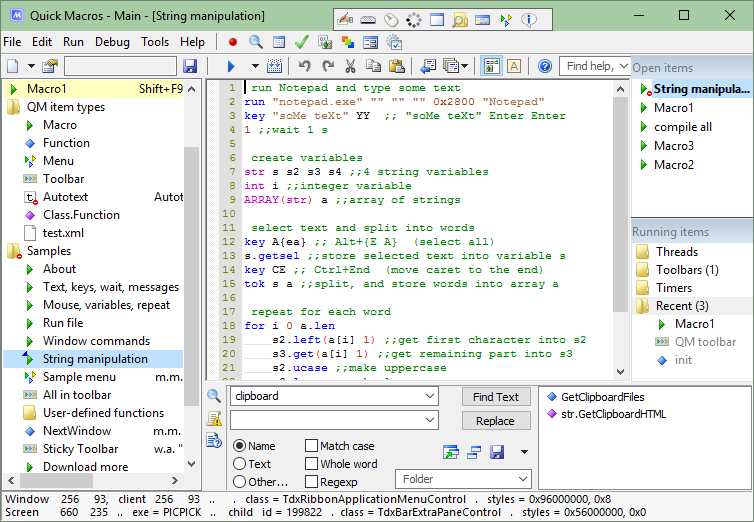 Nothing gladdens the heart of a computer newbie that being able to download and use an application with so much ease. There are quite a number of such programs these days; and one of them is Quick Macros. Nothing gladdens the heart of a computer newbie that being able to download and use an application with so much ease. There are quite a number of such programs these days; and one of them is Quick Macros.
What’s Quick Macros?
Quick Macros allows you to automate repetitive tasks. Record and play back keyboard and mouse actions. Create macros for even the most complex tasks. Create programs for various purposes, and run them in the Quick Macros environment or as standalone exe files. There are many functions, including user interface automation, launching programs, managing files, manipulating text, web browsing automation, custom dialogs.
Various ways to launch macros, including keyboard, mouse, toolbars, menus and autotext. Programming features, such as user-defined functions, classes, dll (API) and COM functions. The program provides a scripting environment with various tools and information features. There is a forum to help with more difficult tasks.
This version features a number fixes and updates such as the following; supports DPI-scaled windows, supports DPI-scaled windows, new functions (- Htm.Hwnd, ew in: ?mov: option + (move and resize) end: flag 32 (temporary), and a few others.
Downside
Most people have frowned at the idea of giving out free registration to users when they write a review about the software; this according to a couple of people might just be a way to influence their sense of judgement. Nonetheless Quick Macros is a nice application.
Want to check it out? Visit QuickMacros.
Posted in Main | No Comments »
Tuesday, August 6th, 2013
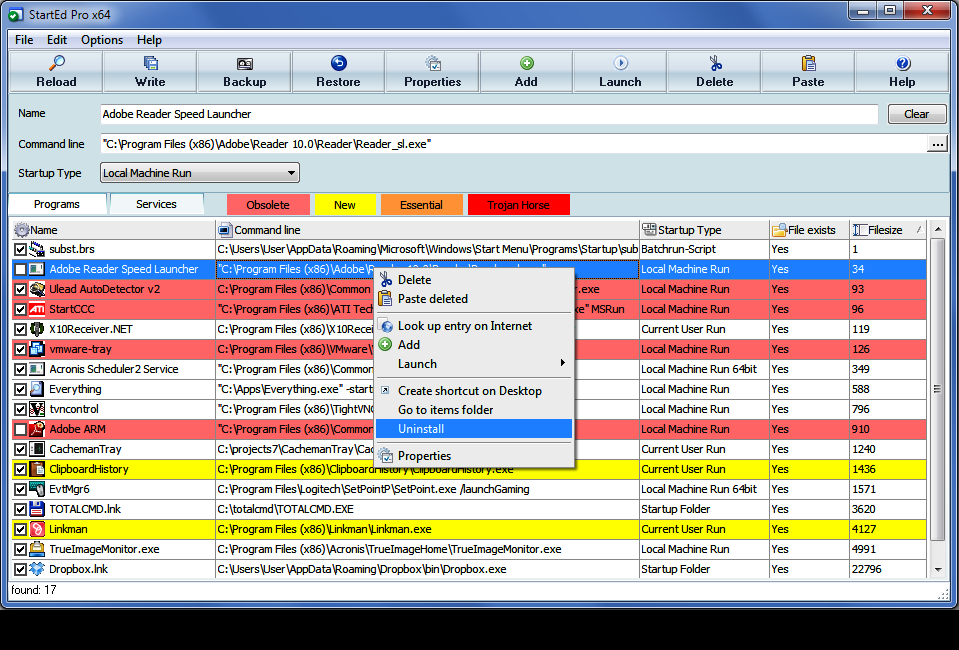 If you need total and direct control over the programs loaded during the booting processes, then StartEd Pro is the answer. The software lets you modify and backup the Startup configuration, detects more than 100 Trojan Horses and comes also handy for every system administrator by managing user startup shortcuts. If you need total and direct control over the programs loaded during the booting processes, then StartEd Pro is the answer. The software lets you modify and backup the Startup configuration, detects more than 100 Trojan Horses and comes also handy for every system administrator by managing user startup shortcuts.
What’s StartEd?
StartEd is a feature-rich program which gives you full control over the applications that launch at startup — even those that are hidden in the Registry. It enables you to Add, Replace, or Delete the Startup entries of your Windows system without having to manually mess around in the Registry. It even recognizes Trojan Horses in your Startup. StartEd has a simple and friendly interface that’s easy to navigate and figure out even without the expansive help file.
Some key features of StartEd including the following: show detailed information about every startup entry; it recognizes more than 100 Trojan Horses in the Startup configuration and displays a warning message; view, Edit, Delete and Add entries to your startup configuration; launch files; Create shortcuts on desktop (useful for temporary disabled items); and print out and copy startup list to clipboard.
Some newly updated and improved features of the program include; improved user interface with color codes display, updated Trojan Database, and Service list can be filtered, e.g. typing backup into the filter field will only show backup services.
Downside
StartEd has a 15-day trial limitation after which 2 features will be disabled – backup & disable items. Full version would cost you $18.95.
Want to check it out? Visit http://www.outertech.com/en/change-startup
Posted in Main | No Comments »
|
|
|