Tilgore Kraut - May 29, 2008
 While going on vacation, all of us like to take the digital pictures to save the memories. Have you ever thought of having these images turned into collages, greeting cards, or any other form that would give a combined beautiful look to your images? Well to make the images look amazing and wonderful you can try using Auto Collage Studio 2.0. The software helps the user to compose the digital pictures into stunning artwork that impress by their sheer looks. It also enables the user to apply different effects to the images placed. Add text, effects, frames, etc to the images and even you’re provided with the templates to use for the desired creation. You can also have them printed and share these with your friends and family. While going on vacation, all of us like to take the digital pictures to save the memories. Have you ever thought of having these images turned into collages, greeting cards, or any other form that would give a combined beautiful look to your images? Well to make the images look amazing and wonderful you can try using Auto Collage Studio 2.0. The software helps the user to compose the digital pictures into stunning artwork that impress by their sheer looks. It also enables the user to apply different effects to the images placed. Add text, effects, frames, etc to the images and even you’re provided with the templates to use for the desired creation. You can also have them printed and share these with your friends and family.
Auto Collage Studio 2.0 is not complicated and can be used by even a novice user. When you launch the program it shows some of the options on the right side and the left side is the working area. Select the images that you want to be changed or applied the effects to. Having the images selected they are shown on the left screen where you’re also shown the immediate effects of the changes made by you. Make your images look astonishing and different by applying different frames to them. Make your images look cute and nice with the clip arts containing nice flowers, and other figures. Change the look by setting the perspective for the images and even you can have the images turned into portraits, embossed images, mosaic, grayscale, so on. Change the image view to make them clear and better by selecting the level of contrast, brightness, hue, saturation, and other provided features. The variety of features is provided to the users to have you’re images beautifully modified.
Auto Collage Studio 2.0 has a collection of easy to use features that help the users to show their creativity while having fun at the same time.
{More Info and Download}
Rating:  Loading... 1 Comment »
Tilgore Kraut - May 29, 2008
 Do you wish that you could enjoy playing with images while creating icons, bitmap images and cursor file? Well now you can do this with Graphics Editing Tool 1.31 that makes it easy for you to have the images modified and even create new ones for different purposes. Paint a new image or place the text in your image, and apply variety of others features, it’s all about having fun while working. It allows you to work like a professional without getting scared of getting stuck with any complicated features. Do you wish that you could enjoy playing with images while creating icons, bitmap images and cursor file? Well now you can do this with Graphics Editing Tool 1.31 that makes it easy for you to have the images modified and even create new ones for different purposes. Paint a new image or place the text in your image, and apply variety of others features, it’s all about having fun while working. It allows you to work like a professional without getting scared of getting stuck with any complicated features.
Graphics Editing Tool 1.31 consists of the features that would make it easy for the users to create the images and make changes to the existing ones. To start up with you need to select the type of the images that you want to create. You can create a BMP, ICON or cursor file as desired by you and even have the size of the image selected at the very beginning. The right side of the screen shows the tools for painting an image like that of MS Paint that makes these extremely easy to use. You’re provided with different tool like eraser, color replacer, pick color, brush, pencil text, rectangle, rotation, invert color and more. Place text, modify colors and have the RGB level set for the images. The color palette contains a large variety colors and with the customization you can create more of them. You’re even presented with the Filters and Effects features to make the images grayscale, smooth, blur, etc. It is even capable of capturing screen shots of the window, or selected regions as you like. All this and much more can be experienced by having the software.
Graphics Editing Tool 1.31 provides the user liberty with a great deal of flexibility and set of powerful features.
{More Info and Download}
Rating: Loading... No Comments »
O. James Samson - May 28, 2008
 When you consider all of the excellent software packages out there that have the ability to help you with problems that you might have regarding spyware and viruses, there are not that many programs that can do this for free. While the Virtual Sandbox is normally a piece of software that would cost you money to purchase, they also release a free version of their software that has lower functionality, but can still get the job done for a cost that anyone can afford. When you consider all of the excellent software packages out there that have the ability to help you with problems that you might have regarding spyware and viruses, there are not that many programs that can do this for free. While the Virtual Sandbox is normally a piece of software that would cost you money to purchase, they also release a free version of their software that has lower functionality, but can still get the job done for a cost that anyone can afford.
The Virtual Sandbox’s free edition is a piece of software that you can still use for privacy protection, safe isolation of infected files and their deletion and a number of different methods for blocking programs that are potentially harmful from ever making it into your computer in the first place. The latest version of the free Virtual Sandbox, released just a few days ago, includes additional functionality in all of these areas so that you can really see what the Sandbox is capable of doing.
For more information about this program and to see additional screenshots, you can visit the website that was created for it at http://www.fortresgrand.com/products/free/vsb_free.htm
Rating: Loading... 2 Comments »
Tilgore Kraut - May 27, 2008
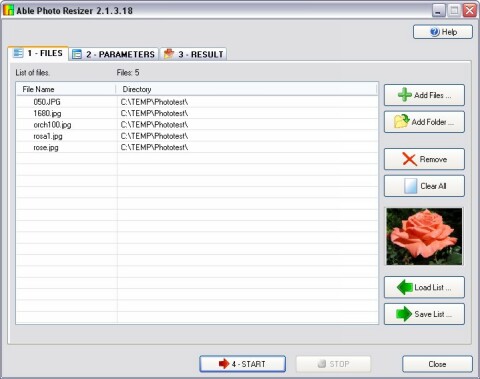 Able Photo Resizer is a simple, quick and easy tool to resize (reduce or enlarge) any single or batches of photos or images for the purpose of sending it by email, publish it on the web or just to save space on your hard drive. Able Photo Resizer is a simple, quick and easy tool to resize (reduce or enlarge) any single or batches of photos or images for the purpose of sending it by email, publish it on the web or just to save space on your hard drive.
Pros: Most photos acquired using a digital camera or a scanner are too large for use on any web page, they must be resized first. On the other hand you would like to share the images with family & friends or even through a website. You may want to resize one to set it up as your avatar.
We have provided Able Photo Resizer to allow you to easily resize your photos in three easy steps.
Able Photo Resizer includes the ability to batch resize pictures, batch resize photos, and perform batch image resize functions for the purpose of email (to friends and family) and web sites, or just to save space on your hard drive, or whatever reason you might have.
It can be used to enlarge a small image for better viewing using different filters for optimum results. The resizing allows you to force a specified width or height and keep the proportions, or define fixed image dimensions. Besides, the program can rename file and more. With the digital camera producing hundreds of images quite easily and quickly you need to be able to process thousands of files as soon as possible. This application aims to all that and does that quite well. Able Photo Resizer can keep or remove all metadata information (Jpg EXIF, Tiff Tags etc). Most cameras add information about aperture, light, comments and much more to the photo. You can delete this to reduce the file size even more.
The program supports 60 odd input formats including JPEG, JPG, GIF, PCX, DCX, TIF, TIFF, BMP, WBMP, RLE, DIB, ICO, CUR, PNG, EMF, WMF, TGA, VDA, ICB, PCD, PIX, PGM, PPM, PSD, PSP, SGI, JPEG200, RAW (CRW, CR2, NEF, PEF, RAF, X3F, BAY, ORF, SRF, MRW, DCR, SR2, DNG, ARW) etc and 18 output formats that are JPG, TIF, GIF, PCX, PNG, BMP, TGA, PXM, PPM, PGM, PBM, JP2, J2K, PDF, PS, DCX, PSD, ICO.
{More Info and Download}
Rating: Loading... 1 Comment »
Tilgore Kraut - May 27, 2008
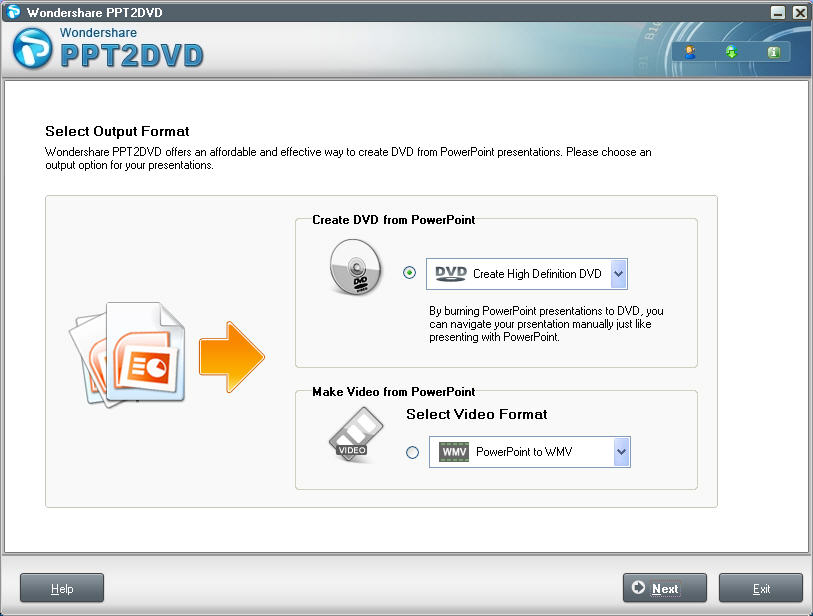 Wondershare PPT2DVD is a tool for creating DVD or video in popular formats (WMV, AVI and MPEG) from Powerpoint presentations. Wondershare PPT2DVD is a tool for creating DVD or video in popular formats (WMV, AVI and MPEG) from Powerpoint presentations.
Pros: Given a MS PowerPoint presentation, this application creates DVD out of that. The presentation then can be played from a DVD player. The options available are the standard definition or even the HD version. You could decide to create a video file instead. The options there are the WMV, AVI, MPEG2 or the MPEG1 formats. The whole conversion process is operated through wizards like screens that collect the parameters and settings through mouse clicks. Wondershare PPT2DVD is a tool for creating DVD or video in popular formats (WMV, AVI and MPEG) from Powerpoint presentations retaining animations, sounds, video clips and internal links (links between slides). Besides, you can create professional looking DVD menu for quickly navigating presentations with a DVD remote control. It is so easy-to-use that even beginners can create DVD without learning.
User chooses whether he wants to create a DVD or just a video file on the first step. Next step you set lot of parameters. Video size in terms of pixels and display size choices are made here. Next are the layout choices. Presentation control buttons and the menu are the choices made her. Menu is made from templates that can be further customized. Settings of border, background etc are made at this stage. Audio settings and sound processing settings are next. Sampling rate, quality of sound and so on are the issues here. At play options timings between slides can be set, but only if they are not set in the original presentation. What remains to be done is to confirm through preview that everything is fine and then burn thesuff.
Cons: While transitions and effects are carried over from the presentation without change, should there be a need to add any while getting this conversion done there’s no way but to go back to the presentation.
{More Info and Download}
Rating: Loading... No Comments »
O. James Samson - May 26, 2008
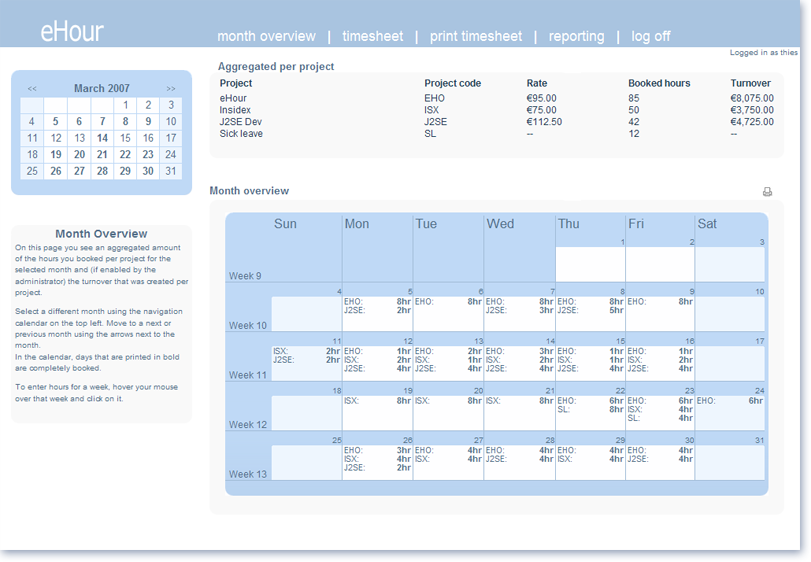 When it comes right down to it, keeping track of time is one of the most important things that you can possibly do. Whether you are interested in doing so for school, work or any other occasion, getting software that will help you keep time should be a top priority of yours. There are many free pieces of software out there that will help you with this, but the latest version of eHour, released on May 15, 2008, is one of the better ones that you can use. When it comes right down to it, keeping track of time is one of the most important things that you can possibly do. Whether you are interested in doing so for school, work or any other occasion, getting software that will help you keep time should be a top priority of yours. There are many free pieces of software out there that will help you with this, but the latest version of eHour, released on May 15, 2008, is one of the better ones that you can use.
eHour not a freewate, but it is open-source, allowing you to make any changes to the program that you would like to see directly. It is primarily intended for project-based businesses and for that reason contains a number of different points of functionality intended to allow those businesses to keep track of the projects being worked on as well as the people that work on the projects and how much time they commit to each one. Ultimately, the user-friendliness of the software combines with the functions that it has to allow for powerful project tracking over time. Because of this, the software can also be used to keep track of schoolwork and other projects that might turn up from time to time and for that reason is just as good for individual use as it is for business use.
More information is available at http://www.ehour.nl/index.phtml
Rating: Loading... No Comments »
O. James Samson - May 26, 2008
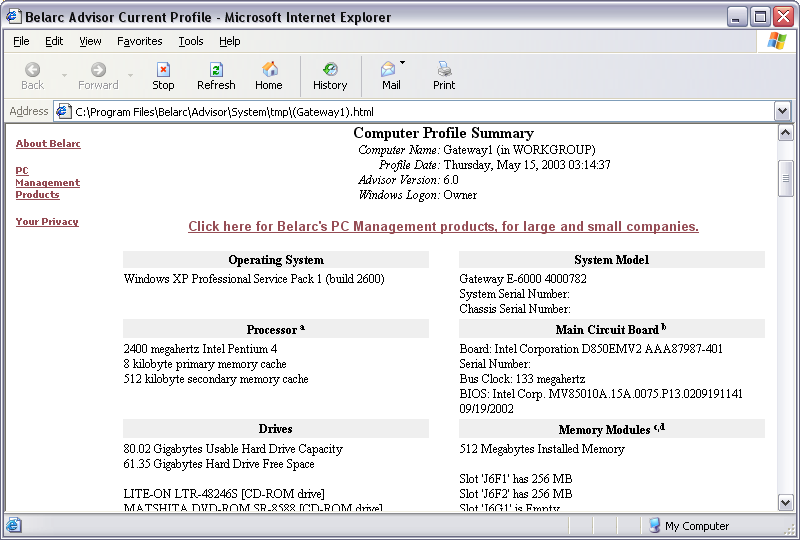 One of the best aspects of the free software revolution that has been going on in recent years is the fact that software packages have been spawned from it that allow you to complete a certain task with a lot of detail and an excellent final product. Belarc Advisor is a good example of such a piece of software and the latest version that was released on May 14, 2008, has a lot of things about it to love. One of the best aspects of the free software revolution that has been going on in recent years is the fact that software packages have been spawned from it that allow you to complete a certain task with a lot of detail and an excellent final product. Belarc Advisor is a good example of such a piece of software and the latest version that was released on May 14, 2008, has a lot of things about it to love.
Simply put, Belarc Advisor is a piece of software that is capable of creating a profile of all of the software and hardware that you have installed on or in your computer. This profile is one of the most detailed pieces of information that you are ever going to get on your computer as a whole and the results of that profile are easily displayed for you in your web browser. This allows you to either save them for referral at a later date or alternatively to print them out on a regular basis and keep them handy to see how your computer profile changes over time. Whichever of these two choices you decide to take, the information is completely secure as while it might display in your web browser, no outside servers are utilized.
More information about Belarc Advisor can be found at http://www.belarc.com/free_download.html
Rating: Loading... 1 Comment »
O. James Samson - May 26, 2008
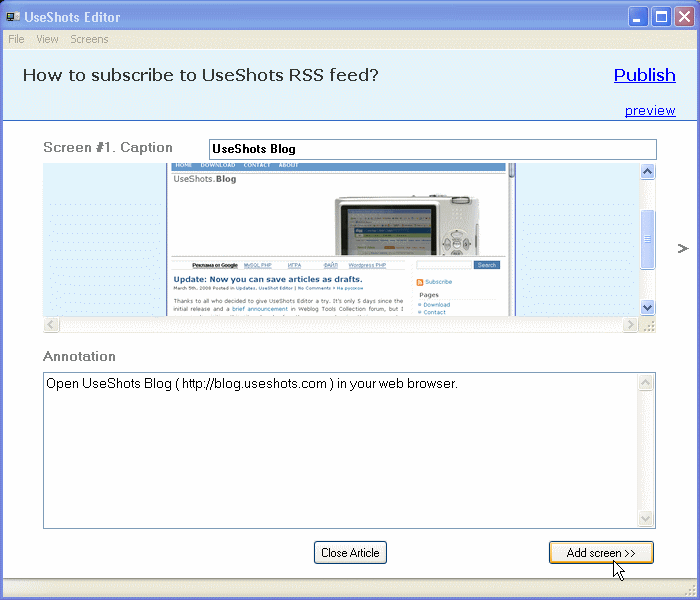 One of the biggest areas of blogging in the modern world has to do with the idea of screenshots. One of the biggest areas of blogging in the modern world has to do with the idea of screenshots.
No matter how you slice it, there are many blogs around that get their traffic by offering high quality content that loses most of its meaning without the use of screenshots. While there is nothing inherently wrong with this, at the same time the process of preparing even one screenshot for blogging is extremely tedious, with multiple ones almost being more effort than they’re worth.
Well, that was the past. The future is UseShots Editor, which allows you to take screenshots, annotate them and then publish them instantly to your blog. All of the business with physical files and photo size is taken care of by the software so that all you have to do is make sure that the screenshot fits in with the rest of your post. This can shave hours off the work that you do and ultimately can be a very positive influence in the long run.
The latest version of UseShots was released just yesterday and included support for categories in the Word Press software program. It also can remember the size of the window from the last use, something that was not available in the previous version. More information is available at http://blog.useshots.com/
Rating: Loading... No Comments »
Tilgore Kraut - May 22, 2008
 IcoFX is a freeware icon editor. It is an all-in-one solution for icon creation, extraction and editing. It is designed to work with Windows XP, Windows Vista and Macintosh icons supporting transparency. IcoFX is a freeware icon editor. It is an all-in-one solution for icon creation, extraction and editing. It is designed to work with Windows XP, Windows Vista and Macintosh icons supporting transparency.
Pros: IcoFX is a icon editor. It is an all-in-one solution for icon creation, extraction and editing. It is designed to work with Windows XP, Windows Vista and Macintosh icons supporting transparency. A variety of tools are available along with some 40 odd effects that can be used to create impressive icons. Possibilities are limitless. Images can be converted into icons conversely icons can also be turned into images. IcoFX gives you the possibility to create icon libraries or change icons inside exe files.
It is easy to covert a Mac icon file into a Windows compatible one and vice versa. Extractions of icons also work reversibly between these two systems without a problem. There’s a batch processing facility available too.
This application is useful in a wide range of operating systems. One can create icons for not only Windows 98/ME/2000/XP or Vista but also PNG compression based icons for the Vista environment too. Same goes for icons in the Mac OS X environments as well. Creating a icon library and managing the same is easy within this application.
Icon sizes that can be handled are up to 256x 256 pixels. Besides color and transparency adjustments there are some image effects tools. These are brighten/darken the image/icon or sharpen/blur the same.
{More Info and Download}
Rating: Loading... No Comments »
Tilgore Kraut - May 22, 2008
 Convert Video to Flash in console. Use Adobe Flash Video Encoder in console mode. By default you can convert files using Adobe Flash Video Encoder. And if you need to automate conversion process from another application or *.bat file. Convert Video to Flash in console. Use Adobe Flash Video Encoder in console mode. By default you can convert files using Adobe Flash Video Encoder. And if you need to automate conversion process from another application or *.bat file.
Pros: This is an application with a command line interface that helps convert video files to flash. While an individual file conversion can be done, the program is really useful when a batch of files need to be converted. A batch file of commands will do the job easily. Command Line arguments of Flash Console Wrapper include all quality parameters for conversion and you can modify and set arguments as you need. You can use Flash Console Wrapper on web servers and run conversion using command line parameters automatically by scheduling or by calling scripts. Result files will be *.swf or *.flv with the same quality as with Adobe Flash Video Encoder.
The set of parameters that can be set are the input file and folder names. Similarly output file and folder names can be specified. There’s a file mask that can be specified, defaults to AVI. Three levels of quality, that is a trade off between quality and file size, can be specified as quality low, medium or high. Lastly “silent” parameter decides if there will be message as the conversion progresses or the application will communicate only when the job is completed.
Cons: As with any conversion programs, particularly when intricate formats are involved, problems if any, come out in some specific combinations. Such combinations may not come up in low volume usage. So it is important to seek out user feedback.
{More Info and Download}
Rating: Loading... No Comments »
|
|
|